Magento 2 Tax Tutorial Part 3
Welcome to Magento 2 Tax Tutorial Part 3. Previously we looked at configuring Tax Rules and Rates within the admin, Tax Classes and the effect on applying multiple rules against customers.
In the first post we configured a product’s price in the admin to exclude tax, so that Magento would the include tax on the price if a customer met the tax rule criteria. Now let’s configure the prices so that they exclude tax.
This can be done by changing the Catalog Prices dropdown value within Stores -> Configuration -> Sales -> Tax, under the Calculation Settings section.
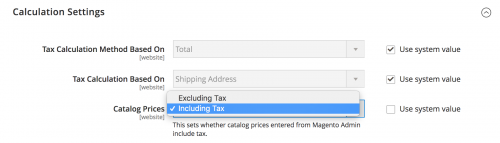
After saving the changes and refreshing the cache, you should notice that on the frontend, the price including tax becomes $100, and the price excluding becomes $83.98.
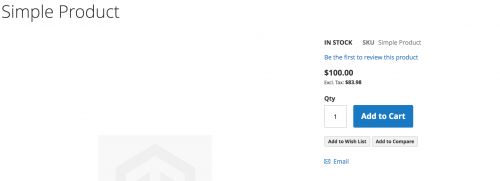
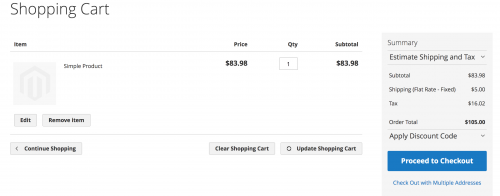
Currently, we’ve been showing prices on the frontend both excluding and including tax. However, when adding the test product to the cart, only the prices excluding tax show.
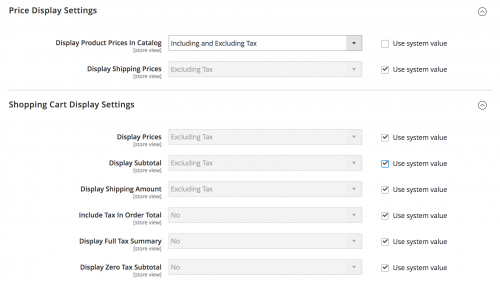
These price display options are configurable within the admin under the Shopping Cart Display Settings section within Stores -> Configuration -> Sales -> Tax.
Shipping Origin Confusion
As mentioned in the previous post, the Shipping Origin setting can affect the product prices displayed if the prices have been entered into the admin including tax.
To simplify this scenario, let’s look at an example:
- A test product is added with a price of $100 in the admin including tax, with a tax class of
Taxable Goods - The
Tax Calculation Based Onoption is set toShipping Address - The
Default Tax Destination Calculationoptions are set toUnited Statesand the state set to* - A single Tax Rule, that applies the
US-CA-*-Rate 1rate of 8.25% that Magento provides as default, and which was used in the first part of this tutorial
With the above options configured, you should see the product’s price both excluding and including tax is $92.38, even though the price entered in the admin was $100, which includes tax.
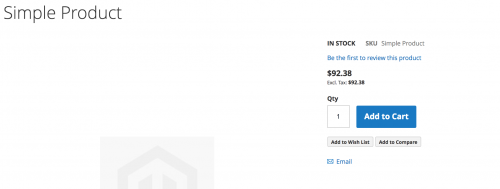
The US-CA-*-Rate 1 tax rate configured is not applied (as there is no difference in price excl. and incl. tax), which is correct behaviour as Magento will not apply the rate as within the Default Tax Destination Calculation options, the Default State is set to * and not California.
The reason Magento shows this price is due to the Shipping Origin section, located in Stores -> Configuration -> Sales -> Shipping Settings.
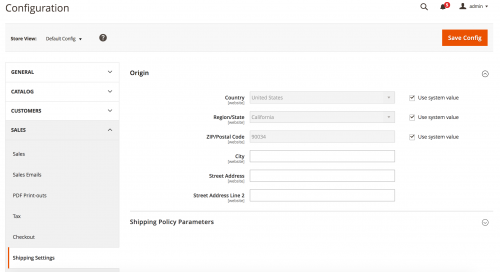
As the Country and Region/State options are set to United States and California respectively, Magento seems to subtract the 8.25% from the US-CA-*-Rate 1 rate, but not include this as part of the tax calculation.
That means if multiple tax rules are active at the same time, in this example, the product price including tax will remain at $92.38, then the price excluding tax will be calculated accordingly.
This can potentially create a lot of confusion so bear this in mind when adding product prices in the admin including tax. Changing the Default State to California so it matches the Region/State option in the Shipping Origin section seems to correct the issue so that the product’s price including tax changes to $100 rather than $92.38.
Shipping Tax
Magento along with a product and customer tax classes, also provides a Tax Class for Shipping option located under the Tax Classes section within Stores -> Configuration -> Sales -> Tax. Change the dropdown option from None to Taxable Goods to add tax to the shipping method chosen by the customer on the checkout page.
If you head to the checkout page and look at the order review step, you’ll notice that your shipping method chosen has had tax added on.
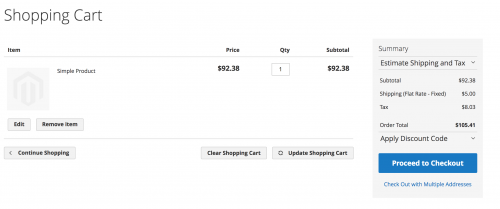
Note: This article is based on Magento CE version 2.1.7.